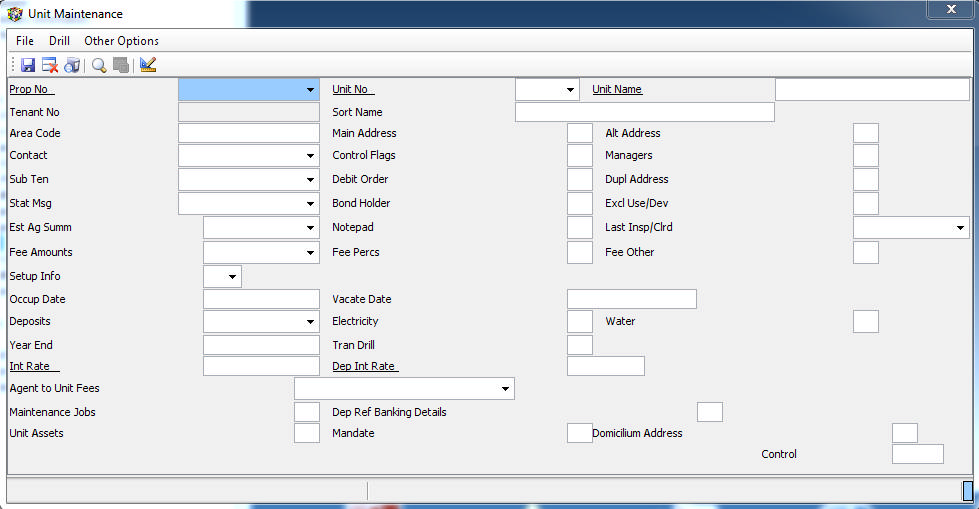
This screen is used to open a new unit, or to edit the details of an existing unit. The various fields of the screen are described below. Refer also to General Batch and Screen Rules.and How do I Open a new Unit -
Field No:
1. Prop No - Enter the relevant property number of the unit that you want to maintain or add a new unit to. Press 'F2' to select off a list, or enter the full or part of the name of the property and select of the search list.
2. Unit No - Enter the unit number to be maintained, or the new unit number. Press 'F2' to select off a list, or enter the full or part of the name of the property and select of the search list.
Refer to Property and Unit numbering for more information on choosing a new number.
3. Unit Display - Enter the usual way that reference is made to the unit, which will appear on the monthly unit statement. Eg. 302 Bonsai Mansions
4. Tenant number - This is a system generated number, that will be added when new units are filed.
Refer to Property and Unit Numbering for more details on its use.
5. Sort Name - Enter the tenant name, as it will appear on the rentroll and other internal and grouped reports. When units are sorted, this is the field that is usually used. Eg. Enter JOHNSON, MR AJ here, but MR A J JOHNSON under field 7 which will appear on the unit statement.
6. Area code - Used in certain accounts to group units based on an area. Can be left blank.
7. Address - Press 'F3' and enter the name and postal address of the unit occupant, which should appear on the monthly unit rental or levy statement.
8. Physical Address - Press 'F3' to enter an alternate address for the unit occupant is required.
9. Contact - Press 'F3' to enter various contact and other personal information about the unit occupant.
10. Control flags - These flag settings control how certain operations are performed relative to the unit. Press 'F3' to insert or maintain them. Remember 'F1' for help while in the system. Some of the flags are for future use, or only relevant in certain accounts, and need not be completed. The flag numbers may vary from account to account, as the various options have been added.
10.1 Unit type - 'L' for Levy/Sectional Title , or 'R' for Rental, but no restrictions are imposed here.
10.2 Post flag - 'P' for statements that are to be posted, and 'D' for that will be delivered. This is used for the printing order of unit statements.
10.3 Address flag - Not used
10.4 Suppress D/O statement - Y/N - In some accounts, units paying by debit order by default do not receive a monthly statement. Set this flag to override the default and send a statement.
10.5 Financial flag - Enter a flag, usually one alphanumeric character, to group this unit with other similar ones when running the This is used to group handed over matters (H), attorney matters (A) or any other flag entered on the unit. There are only certain flags that have system captured descriptions. They will be grouped by the flag whether or not there is a description on the system. Descriptions can be added to the financial flag table.
10.6 Electricity Flag - Insert an 'R', if this unit should be charged electricity. The scan program on management level will show all units coded as 'R', that do not have an electricity charge, raised an electricity batch.
10.7 Water Flag
10.8 Penalty Flag
10.9 Final Notice Y/N
10.10 Rent in Arrear Y/N - Set to 'Y' if the tenant is allowed to pay his rental at the end of each month as opposed to at the beginning thereof. It will then appear in a separate group on Outstanding Balancesreports.
10.11 Block Interest - Set to 'Y' if the property has been setup to charge interest to all units, and this unit should be excluded. Refer to How do I Charge interest on Arrear Rent/Levies.
10.12 Unit Door Number - Enter a door number of a unit if it is different from the unit account number. A rent / levy roll will sort by the door numbers in they are entered.
10.13 Cashier Message - Enter a message which will appear on the cashiers screen when a receipt is processed for the unit. Eg. 'Please call Claire if this person comes in... ext 221'
10.14 Tenant Master - Set flag to Y if special rental insurance policy is in place for your account
10.15 E-Mail tenant statement Y/N - Set flag to Y if this tenant is to receive his statement in HTML electronic format. This is only applicable if the facility has been activated on your account. When setting the flag to Y, the system will check that an e-mail address has been entered in the contact information on field 9. Refer to How do I e-mail a tenant statement
15.19 Exclude DCA Charges (C)ommission, (O)ther, (B)oth - For this unit, choose 'C' to block the raising of any DCA receipting commission, 'O' to block the raising of other (not receipting commission) DCA charges, 'B' to block both, or leave blank to raise all.
| 11. | Managers - Enter the unit manager and credit manager if it differs from the property managers. By default, they are set to the same as the managers setup on the Property. If the property settings are changed, all units will be automatically updated, and any unit settings will have to be updated again. |
12. Sub Ten - Used to setup a link to a controlling or dependent unit, for the automatic billing of electricity and water by the controlling unit to the dependent unit, and the payment of the balance due by the controlling unit to it's property by the dependent unit. Refer to Unit linking for more detail.
13. Debit Order - Press 'F3' to enter or view debit order details and Deposit Refund bank account details. Refer to How do I Setup a Debit Order
14. Duplicate address - Enter the name and address to appear on a duplicate statement if one is required. A debit order billing the owner of the unit can be automatically built to recover any cost.
15. Statement message - Press 'F3' to insert a four line message that will appear on this units' statement. Refer to How do I Insert a Unit Statement Message for more detail on how the message structure operates.
16. Bondholder - Press 'F3' to insert, edit or view bondholder information for the unit. Mainly useful in the sectional title environment.
17. Exclusive use - Press 'F3' to insert, edit or view exclusive use areas that are linked to this unit. Restricted to Garage, Carport or Yard. Enter the exclusive use area number.
18. Estate Agent Summary - Press 'F2' for a printable summary of sectional title information relative to this unit, which is useful for an estate agent when sales take place.
19. Notepad - Press 'F3' to enter a note for this unit. If there is no space to enter a new note, press ^ (shift 6) to insert a new line. These notes can be entered with a future date to assist as a form of a diary. Notes can be viewed on this screen, or using two scan programs, Notepad - Date Selection or Notepad - Multiple Properties, on the debtors reports menu.
20. Date last inspected - If the unit is a rental unit, enter the date that the unit was last inspected. To scan for dates, use Unit Last Inspection Control on Management Reports Menu
21. Fee Structure - Amounts - This field is used to store the regular monthly billing to units for rental, levy etc. There is no restriction on the description, but what is typed in will appear on the rent/levy rolls, unit statements and in the accounting records of the property. Uniformity within an account will give a better image, and be easier to control.
Enter the amounts including VAT if VAT is applicable. If it is, remember to tell the system that it is by setting the VAT flag to 'Y' as described below.
The full period of a lease agreement can be captured with the relevant dates being inserted. It is usually wise to leave the last line of each fee type with no 'To' date, in case the occupant does remain and this field is not updated in error. This will result in an incorrect billing, which is better than no billing.
The system will insert the 'From' date for the second and following lines of an identical description to assist in ensuring complete period coverage. If you override the default, and leave a gap in the period, you will be warned as you exit.
The following is an example of the display after pressing 'F3' on field 20 -
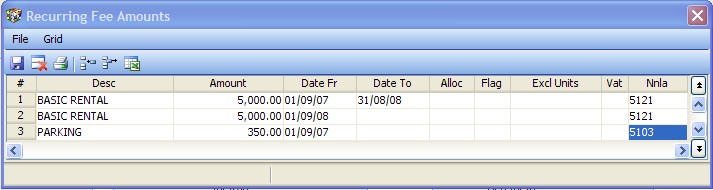
Alloc, Flag and Excl units can be ignored on this screen. They are used when using fields 22 and 23.
Any Vat setting in the Vat column, will override the default setting on the property, except that if the property is set to 'N', you will not be able to set this to 'Y'. If left blank, the property default setting will apply.
The Nnla is the general ledger account in the books of the property to which this fee will be posted. If left blank, it will post to a default account set in the program. The fees setup here are raised when the monthly fee raise is run from the Management level.
This fee structure can be used to raise deposit billings to a unit. If the Description is entered as 'DEPOSIT', or contains the word 'DEPOSIT', you will be able to enter an amount and dates as required (Remember that the amount will be billed each month within the date range). As you enter through the remaining fields, the relevant default values will auto complete, which you will not be able to change, as they need to comply with the deposit raising rules (VAT will always be N, and the Nnla will always be 3276). Refer to Deposit Billing for more information about charging a deposit to a tenant.
22. Fee Structure - Percents - This facility has not been used to date. It has been setup for future use, for more complex fee recoveries, as needed.
23. Fee Structure - Other
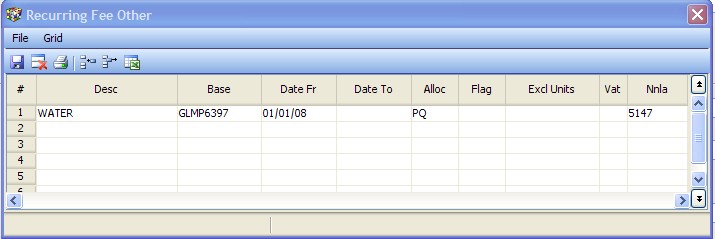
This field is used to store monthly billing to units for variable amounts. It is usually used for recovering costs that are paid by the property owner, and then recovered from the tenants of a building. For example - sewerage, water (where there are no water meters) etc. There is no restriction on the description, but what is typed in will appear on the rent/levy rolls, unit statements and in the accounting records of the property. Uniformity within an account will give a better image, and be easier to control.
The recovery is calculated either from a General Ledger Account (That carries the cost to be recovered), or from a system defined base, which are listed in the table below:

| The above example for Water, is based on the general ledger, GL, the month's plus move, MP on the general ledger account 6397. The variables are GL Y/M P/M/B - General Ledger, Year to date amount or Month Move, restricted to Plus, Minus or Both amounts. The amounts calculated from here will be billed only to the unit on which it is set up on. |
| By setting up the same recovery on Maintenance - Property, Field 47, all units in the property will be billed, except for those entered in Excl. Units. |
| The basis of allocation of the cost to the particular unit is either on its 'PQ' or 'UDA 1 to 5. A units Participation Quota ( PQ ) in terms of the system, is the units proportion in terms of filed 18 on Maintenance - Property. If you wish to use that proportion, then enter 'PQ' under the Alloc. column. You can also use one of five other allocation proportions, 'UDA1' to 'UDA5', by entering the relevant one in the Alloc. column. These proportions are setup on field 36 of Maintain/Setup Property. |
| Please contact the Help Desk for more information on the other bases that are available. |
24. Setup - Used to store indicated base information relative to the unit. The amount fields should include VAT. The rates and insurance amounts should be the annual amounts.
25. Occupation date - the date that the relevant occupant took occupation of the unit.
25. Vacate date - This would normally be blank for active units. It will be automatically inserted when a unit is suspended. No fee structure (Field 20) billings will take place if the vacate date is prior to the billing date.
27. Deposits - This field will display the total of the amount of the deposit received from this unit, plus any interest accrued thereon. Press 'F2' for a detailed transaction listing making up the total held.
28. Electricity History - Press 'F3' to view a history of electricity readings, dates and amounts where they have been imported or captured as electricity batches.
29. Water History - Press 'F3' to view a history of water readings, dates and amounts where they have been imported or captured as water batches.
30. Not used at this stage
31. Transaction drill - Press 'F2' to view a rolling twelve month summary history of the units' account. Press 'F2' on any month for it's full transaction detail, or 'F2' on the total line for a twelve month detailed transaction listing. This can printed or faxed off the system by pressing 'Ctrl' F and entering the printer number, or 'FAX' to fax it.
32. Int rate - Enter as a rate relative to the system prime rate, eg. 'P+2', or as an annual interest rate eg. 18 for 18%. This will override the Property interest rate set for all units
(Refer to 'How do I Charge interest on arrear rental/levies')
33. Dep Int Rt - Deposit interest rate. Enter the rate that this unit will receive on its deposit, if it is different from the rate setup for the whole account or the controlling agent. This is only used where a tenant has negotiated a different from normal rate for themselves. Enter the annual interest rate eg. 9 for 9%, or a rate relative to the system Deposit rate eg. D+2 . Refer to How do I setup and credit Interest on Tenant Deposits
This would be the actual rate at which the tenant would be credited with interest.
34. Agent to Unit fee structure - Amounts
This facility will raise an Agent to unit batch when the monthly fees are run. It is usually used by an agent to charge a cost recovery to a unit.

35. Maintenance Jobs - Press 'F2' to view a list of all unfinalised maintenance jobs relating to the relevant unit and to the common areas of the property. Press 'F2' on any Job to view the Job Enquiry Screen.
36. Deposit Refund Banking details - F3 to enter bank account details used when refunding any deposit held.
38. Unit Assets - F3 to enter assets that are linked to a unit. Refer to Unit Asset Summary (List) for more information about this facility.
39. Mandate - Store any instructions or notes that are relevant to a particular unit. These notes will be transferred to the new unit created when a unit is suspended.
40. Domicillium address - Enter the address chosen by the unit owner
41. Document archive - If active on your server, view stored documents for a unit. These include archived reports (Unit statements) and manually uploaded documents.