The purpose of this screen is the set up or maintenance of details for a Agent or a Division of an Agent . In view of this screen's position at the top of the hierarchy, settings on this level can have an effect all the way down to Unit level. It is important therefore, to be certain of the settings that you employ. User access to this screen should be carefully considered. The various fields are described below:
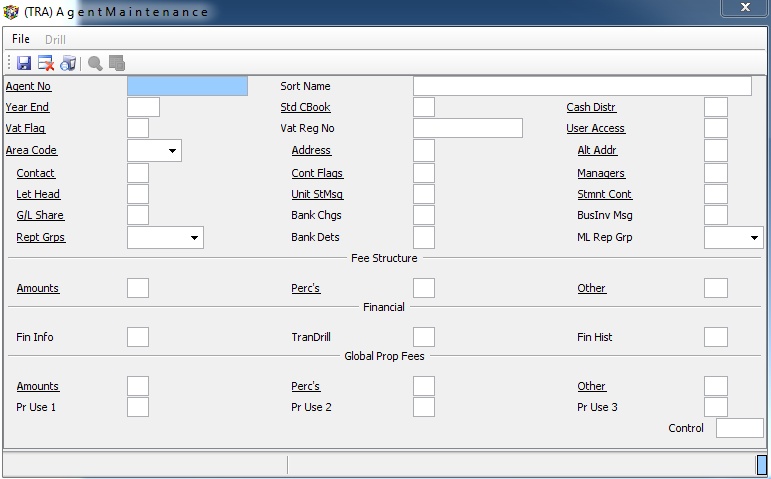
Agent No: Enter an existing Agent/Business Number in order to maintain an existing Agent /Business, or type 'NEW' and press Enter to create a new Agent/Business.
Sort Name: Type the name of the Agent/Business and press Enter.
Year End: Enter the Month Number of the Financial Year End for the Agent/Business.
e.g. 2 for February or 7 for July
Std CBook:- Choose the Default Cash Book (Banking system) for this Agent/Business. Select from 'C' for Central, 'A' for Agent Central, or 'L' for Local (Agent ) bank account. This choice causes all relevant batches to default to the selected bank account. This flag is usually set to 'C' when a Central Banking System is in operation. Refer to Banking Systems for more information on each flag type.
Cash Distribution:- Press 'F3' to enter the details of how any Surplus held in Central Trust Account should be distributed.
VAT Control Flag:- Enter the VAT Period as allocated by the Receiver of Revenue. Either 'A', 'B' or 'O'. If any flag is entered here, the system sees the Agent/Business as a VAT-able Property by default in all relevant batch screens.
VAT Registration Number:- Enter the Agent/Business's VAT registration number, for record keeping purposes. The VAT number usually printed on Unit statements / tax invoices, is the Agent s number, which is permitted in terms of the Value Added Tax Act, as long as adequate records are maintained by the Agent . Leave blank if the Agent/Business is not registered for VAT.
User access:- Press 'F3' on this field in order to enter the User Logins that are permitted access to the Properties linked to this Agent , as well as the books and functions of this Agent/Business.
Area Code:- For future use. Used historically for importing data on conversions.
Address: Press 'F3' to enter address information for the Agent/Business. This address is often used to print on Unit statements for payments to be mailed to.
Alt. Address:- Press 'F3' on this field in order to enter an Alternate Address for the Agent/Business. Often the Postal Address is entered in the Primary Address Screen, and the Physical Address in this one.
Contact:- Press 'F3' on this field in order to enter Contact Information for the Agent/Business.
e.g. Telephone, e-mail, etc.
Control Flags:- Press 'F3' on this field in order to enter various Control Type Information. These flags vary from one account to the next, and contain important control information.
The following is an example of this data entry screen including descriptions of the various fields:
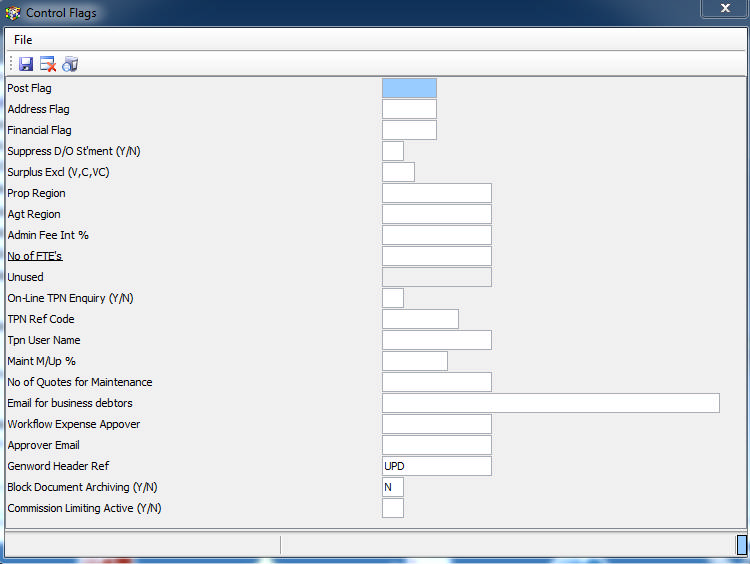
Post flag:- Not used on this level.
Address flag:- Not used on this level
Financial flag:- Not used on this level
Suppress D/O statement Y/N:- If this field is set to 'Y', Statements for all Units in all Properties linked to this Agent will not be printed when month ends are run.
Surplus Exclude:- Not used on this level
Property Region:- This field allows you to choose a Region from a pre-existing list to which creditors linked to any Property that is linked to the relevant Agent will default. This default Region becomes the default Region for all creditors linked to this Agent , along with all its properties, and determines the creditors displayed by the 'F2' drill in the Property Creditors Journal Field.
Agent Region:- This field allows you to choose a Region from a pre-existing list to which Creditors linked to the relevant Agent will default. This default Region becomes the default Region for all Creditors linked to this Agent and determines the Creditors displayed by the 'F2' drill in the Agent Creditors Journal.
Admin Fee Interest %:- Enter the Annual Interest Rate at which the Agent will charge Units for any outstanding balance due to the Property when interest is raised for the Property
No. of FTE's:- Enter the number of Full Time Employees in this Agent/Business. This figure is used in the Statistical Performance Reports on the Management Level.
On-line TPN Enquiry Y/N:- If you are registered with Tenant Profile Network for performing Credit Checks on Potential New Tenants, and you want to force a credit check before a lease can be captured onto the system, set this flag to 'Y'. You will have to complete the two fields immediately below to give effect to a 'Y' setting. Alternately leave this field blank or set it to 'N'.
TPN Ref. Code:- Enter your Code if the On-line TPN Enquiry is set to 'Y'
TPN User Name:- Enter your User Name if the On-line TPN Enquiry is set to 'Y'
Maint Mark up %:- Enter the Default Mark Up Percentage for creditor's invoices when using the Property Maintenance Control System
No. of Quotes for Maintenance:- Enter the Default Number of Creditors Quotes that will be required when using the Property Maintenance Control System
Genword Header Reference:- Enter a substitute account name to overwrite the default template names used for the account. It enables you to send reports with different logo's etc. from the same account.
Commission Limiting Active (Y/N):- Set to Y to limit the automatic raising of collection commission to commission on fee structure amounts raised for the current month. Refer to How do I Setup and Run Commission Limiting for more information.
Managers: Enter the necessary Client Communication Details for the various Managers within this Agent /Business.
The following is an example of the capture screen:
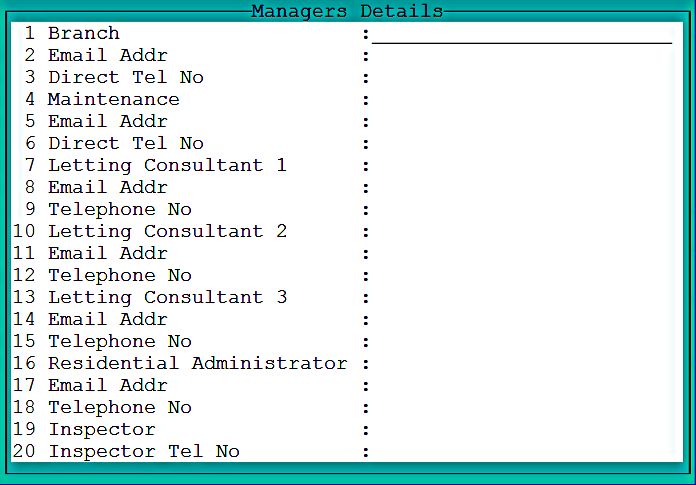
Letterhead:- The name, address and telephone numbers captured in this field will print as a "Letterhead" in some Reports. If you use pre-printed Letterheads/Stationary, then leave these fields blank.
Unit Statement Message:- The following is an example of the Unit Messages Input Window:

Unit Statement Message:- Press 'F3' to type a four-line message that will appear on all Property Unit Statements for this Agent .
Refer to How do I Insert a Unit Statement Message for more information on how the message structure operates.
Statement Control:- The following is an example of the capture window for Statement Control:

This screen is utilised by users of the Standard Bank M65 Direct Deposit System who do not pre-print this information on their Unit Statements.
GL Share:- The following is an example of the General Ledger Account Sharing Screen:
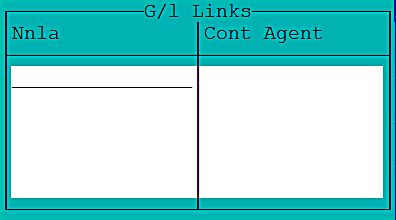
This facility allows the sharing of certain General Ledger Accounts between a group of Properties or Agents /Businesses. In the case of a group of Agents /Businesses, a Controlling Agent/Business for the group is decided on, and once setup, each entry posted to one of the shared accounts, is re-routed via an inter-Agent loan account (a separate one for each transaction type) in both Agents /Businesses, to the relevant account of the Controlling Agent/Business. The same principles apply on the Property Level.
Refer to General Ledger Account Linking for more information on this facility.
Bank Charges:- This option controls whether or not bank charges are charged on Central Banking Payments for Properties linked to the relevant Agent . The amounts inserted are NET of VAT. VAT is added depending on whether or not the Agent is registered for VAT.
Bus. Inv. Message:- The message entered here prints on all Open Item Sundry Invoices.
Reporting group - Link this Agent/Division to one or more groups which are used for various reports
Fee Structure:- This Fee Structure is used when fees are billed to the Agent s/Businesses for any services rendered to them on the Management level. This facility is not generally used.
Financial:- These fields are not used at this stage.
Global Property Fees:- By capturing fees on this level, all but "Excluded Properties" linked to this Agent will be charged the same fee by the relevant Agent .
Amounts:- A monthly, Fixed Amount type fee.
Percentages:- Not used at this stage
Other:- Not used at this stage
Pr Use 1, 2 and 3:- Not used at this stage