This screen is used to Capture Invoices and Credit Notes from a creditor. It is designed as a batch entry screen, thus requiring a Batch Total to be entered at the beginning. This can however, be amended by using the accumulated total of the batch at the end, prior to posting.
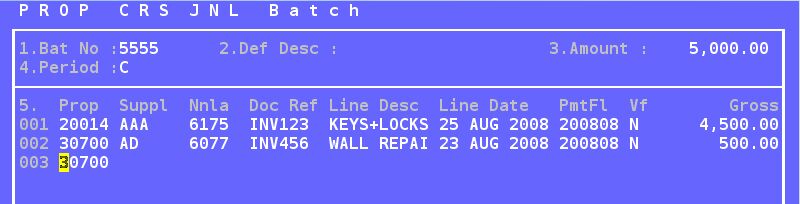
1.Enter 'NEW' for the next available Batch Number, or enter a previously unposted Batch Number. To repeat or reverse a previously posted batch, enter 'BATCH123' , where batch 123 is an old batch for which a copy or reversal is required. Follow the prompts to complete.
2.Default Description - Enter a line description that will become the default future lines, or leave blank.
3.Enter the Total of all Transactions in the batch.
4.Enter the Period to which the transaction is to be posted.
The options are: -
'C' for Current Cash Period
'B' for the Billing Period (directly after the current)
'P' for the Period Prior to the Current Period.
1.Enter the Property Number to which the invoice applies.
2.Enter the Supplier Number, or press 'F2' for a list of Suppliers linked to the Region of which the Property is a part. If the Creditor has not yet been created for this Property, it will be added automatically.
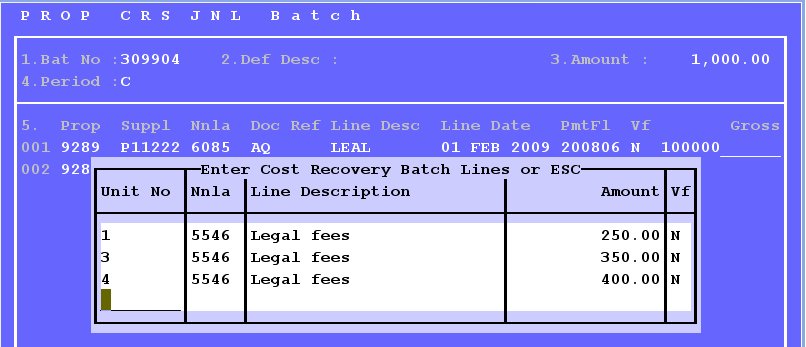
3.Enter the General Ledger Code to which the invoice must be posted. If a Maintenance Code is selected, you will be required to allocate the amount to a Unit or Units. If you enter a code that has been set up to auto bill the cost being entered to one or more units, you will be prompted to enter the units as in the example below:
4.Enter the Invoice or other appropriate Reference Number. This reference should ideally be unique to this transaction, and the system will check to see whether it has been used previously. While it is possible to re-use the number a password will be required. The default password is simply 'Y', unless it has been changed.
5.Enter the Description for the Invoice
eg. Repairs to pool
6.Enter the Date of the Invoice.
7.Enter the Period from which the invoice should be paid. This defaults to the Current Period. It you wish to make payment in some future period, enter the relevant period. In such a case, this invoice will not be selected for automatic payment until the relevant month is reached.
8.Enter 'Y' if VAT is included and the Property is register for VAT.
9.Enter the Gross Amount of the Invoice, including any VAT. The system automatically makes the appropriate VAT and expense portion postings.
After the amount is entered, a screen is displayed to capture any discount that is to be deducted and paid to the Agent. This amount is calculated based on the default percentage set up on the Maintenance - For Your Clients - Creditor Menu.
An example follows:

Once complete, enter a '.' full stop to drop to the command line at the bottom of the screen. File the batch, and Post it if you wish. If you file the batch without posting it, you will be able to enter the Batch Number in Field 1 and re-edit the batch at a later date. If you miss the batch number, you can always find unposted batches by using the Batch Enquiry facility, and selecting 'Y' for unposted only.