This screen is used to add a Creditor's Record to a single Property, or to amend an existing Creditor's Record. Once captured, this Creditor is available to all other Properties in its region. The same Creditor can exist on many Properties as is often the case in the Property administration industry. When the Creditor Details are amended on one Property, the system ensures that the changes are automatically made on all other Properties that list that Creditor.
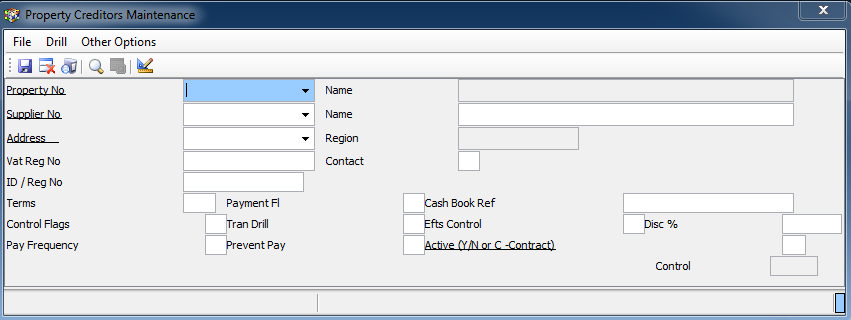
1. Enter the relevant Property Number.
2. The Property Name is automatically displayed for an existing Property .
3. Enter a Supplier or Creditor Number. This "number" can be any combination of numbers and/or letters, but as usually the case for this type of reference, some thought should go into its choice. If you are maintaining an existing creditor, you can search for a Supplier/Creditor Number either by pressing 'F2', or by clicking on 'Select/Drill'. This drill brings up all Creditors contained in the Creditors Database within the relevant region specified in Field 16. If the Creditor is on the database but has not been linked to this Property, the system will automatically link the Creditor to the Property when you select it from the list. If you enter a new Creditor, the system will only link the new Creditor to the Property on which you are currently working. However, the new Creditor will be automatically added to the Creditor Database for use by other Properties in the same Region.
4. Enter the Supplier/Creditors Name
5, 6 & 7 are not used at this stage.
8. Press 'F3' to enter the Address Details of the Supplier.
9. Press 'F3' to enter the Contact Information for the Supplier.
10. Not used at this stage.
11. Press 'F2' to view a Twelve-month Summary Transaction History of this creditor's transactions with this this Property. Press 'F2' on any month to view all transactions for that month, or alternately, on the Total line for all transactions for the full period. All creditor's transactions for all Properties can be viewed by using the Multi Property Transaction Drill.
12. Press 'F3' to enter the following Details if the Creditor is to be Paid Electronically-
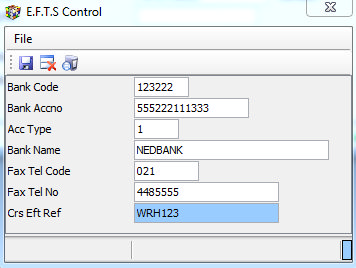
Field 3, is the Account Type - usually '1' for a Current Account.
If Fields 5 & 6 are completed, remittances printed by running Creditors - Send Remittance Advices will be faxed automatically to the specified number. This field is password protected in some accounts.
If you are set up to link to Netcash, the Bank Account, Branch Number and Account Type will be validated as you leave this input window. You will be advised of any errors.
13. Insert the Percentage, including VAT, that the Agent receives as a Discount from the Supplier. This will be used to make the default Discount calculation on each invoice that is captured. The discount will be deducted from the payment to the supplier, and credited to the Agent's (Franchisee's) income.
14. Enter 'W' or 'M' for weekly or monthly Payment Frequency, or leave blank to default to 'M'. This field can be used to select Creditors that need to be paid on a weekly or other basis, when running the automatic REMITE OR REMITC payment methods.
Refer to Property Creditors Payment.
15. If 'Y' is inserted, Payment to the relevant creditor will be Prevented when the automatic payment methods are used. This allows a remote site to block payment if payment is made by a central group.
16. The Region will be automatically added based on the Region set up on the Agent Setup, and is used to keep regions separate from each other.
Refer to the control flags on Maintain/Setup Agent
17. Flag the Creditor as Inactive by changing the default 'Y' to 'N'. A password is required to change this field setting in some accounts. Inactive Creditors are not selected for automatic payments and cannot have entries cannot be posted to them.
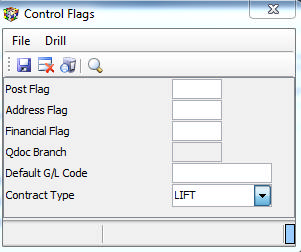
The control flags field, which includes a type field, based on the Supplier type table: