This option produces a report reflecting a Property's share of the Central Bank Account, or the amount due by the Property to the Central Bank Account. The actual balance is adjusted according to amounts due to any creditors, or any VAT to be paid on behalf of the Property, thus reflecting the net amount due to, or by, a Property Owner. These adjustments can be included or excluded depending on the control flag set up for a Property (see below).
Run in summarised mode, a report is produced containing a single line, containing the totals of each Property, for each selected Property. This report can be used as a summary of the Central Bank Account, and also to manage amounts due to the Central Bank Account.
You can choose to display a single Net Total Line for a group of Properties, or the totals for each Property can be displayed individually, by choosing 'Y' or 'N' when prompted.
(Refer to How do I Group Properties)
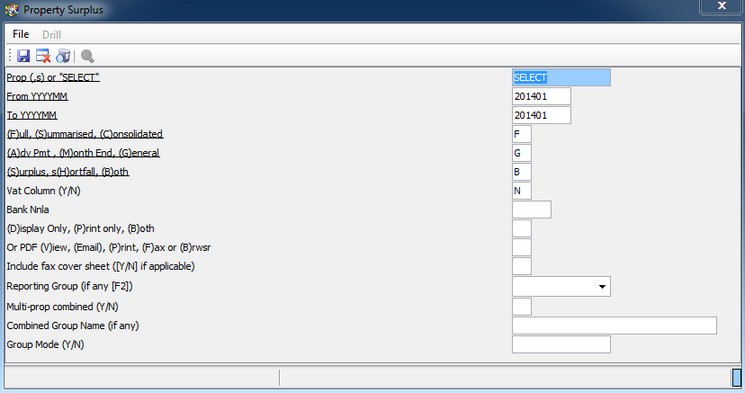
The above insert contains options that need to be chosen when running this report:
Choose Properties |
Prop |
Enter the Property Name or enter 'SELECT' to choose from the a list |
Report Content |
Period |
Enter the required From and To month. Selecting one month will make the report available in PDF format. Selecting more than one month will group the selected months into one report. |
Report Content |
Full, Summarised or Consolidated |
A Full Report displays all details for the relevant month, separately for each Property. A Summarised Report lists only the balance and adjustments totals on a single line for each Property, along with Totals per Report. If you choose to summarise grouped Properties, then only one line is shown for the whole group, along with its net balance. |
Report Content |
Advance, Monthly or General |
enter 'A', 'M' or 'G' in order to select Properties according to their payment flags. This is usually used to select Properties in order to pay surpluses due to them. These flags are set up on Maintenance - For your Clients - Property (Owner), Field 24. |
Report Content |
Surplus, Shortfall or Both |
Enter the indicated letter, as required, in order to display only the selected type of balances. Shortfall balances are those due to the Central Bank Account |
VAT Column Y/N |
On a Full Report, a column displaying the VAT content of the amounts paid or received as direct payments or receipts can be displayed. It defaults to 'Y'. Payments to creditors, where the initial entry was not a direct Cash Book payment, do not display the VAT content. Full VAT details can be obtained from the Property VAT Report. |
|
Report Content |
Bank Nnla |
|
Output Format |
Choose - Text version, (D)isplay, (P)rint or (B)oth |
|
Output Format |
Or - PDF version (V)iew, (E)mail, (P)rint or (F)ax |
|
Choose Properties |
Reporting Group - if Any (F2) |
|
Property Grouping |
Multi-Property Combined Y/N |
|
Property Grouping |
Combined Group Name (If any) |
|
Property Grouping |
Group mode Y/N |
If Group Mode is set to 'Y', then all Properties that have been grouped using Sub Prop (Field 21) of the Maintainance - Property screen, will be added together |
The final Shortfall or Surplus on the Full Report will already have been adjusted by any creditors due by the Property, as well as any VAT due by the Property. These adjustments can be excluded either collectively or individually by setting the relevant control flag in Maintenance - For your Clients - Property (Owner).
If the flag is set to 'V', the VAT Control Balance is excluded.
If set to 'C', the Creditors Control Balance is excluded.
If set to 'VC', both balances are excluded.
If left blank, both balances are deducted (included).
e.g. if the Property Owner pays his own VAT to the Receiver of Revenue.
This report can also be run from the Trust Account Management Menu, which produces the same report, but also generates payment batches to pay surpluses to Owners.