This screen is used to set up or maintain a previously set up Property. The various fields on the screen are described below:
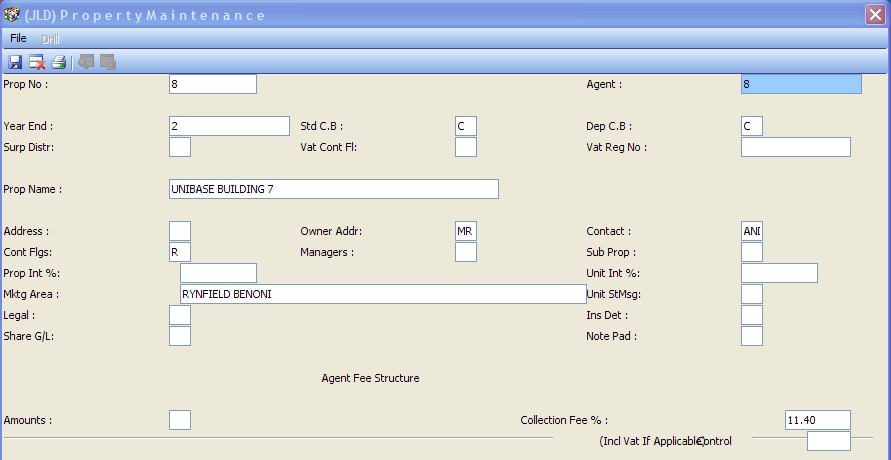
1Property Number – In order to maintain details of an Existing Property, enter the existing Property Number. To Create a New Property, enter any Non-Existing Property Number.
2Agent - Enter the Agent Number for the Agent to whom this Property is Linked. When setting up a new Propertythis number is a required field. The Agent Number can be changed with a password after ensuring that there are no overdue amounts due by the Agent or Property.
(Refer to “How Do I Change a Property’s Agent”)
3Year End - Enter the “month number”, e.g. 2 for a February financial year end, etc. After entering the year end month you will be asked the question, “G/L Active And Used ?”. Answer 'Y' to have year ends run automatically as part of the relevant month end process, or 'N' to exclude year ends from the relevant month end process. It is usually better to say 'Y' since no harm is done if the system runs a financial year end. Financial year-ends can be re-rerun as often as is required.
4Standard Cash Book - Choose this Property’s Default Cash Book (Banking System), from the following options:
'C' for Central, 'A' for Agent central, or 'L' for Local (Property’s own bank account). This choice causes all relevant batches to default to the selected bank account.
(Refer to “Banking Systems” for more information on each type)
5Deposit Cash Book - Choose C, CP, A, AP or P as necessary. (Refer to “Tenant Deposit System”)
6Surplus Distribution - Press 'F3' to enter the details of how Surpluses from the Property should be Distributed:
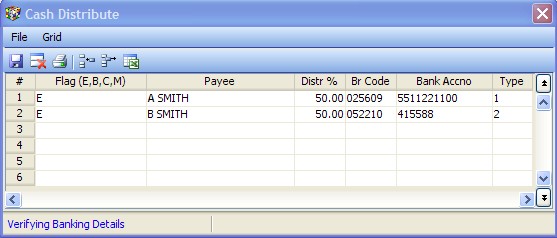
E, for EFTS (Electronic payment),
B, for a bank cheque,
C, for an internal cheque
('M' is a flag for future use)
Payee is the payee on the Cheque or the Account Holder Name.
Distr Perc is the Percentage of the Surplus that will be paid to each line beneficiary.
(These must total 100%)
Branch code and account number for Electronic Payments. Some accounts allow a branch name to be entered in the branch code column.
Account Type - 1 for Current, 2 for Savings or 3 for Transmission
If you are set up to link to Netcash, the bank account branch, number and account type will be validated as you leave the input window. You will be advised of any errors.
7VAT Control Flag - Enter the VAT Period as allocated by the Receiver of Revenue. Either 'A', 'B' or 'O'. If a flag is entered here, the Property will default to being a VATable Property in all relevant batch screens.
8VAT Registration Number - Enter the Property’s VAT Registration Number for record keeping purposes. The VAT Number that is usually printed on Unit statements / tax invoices is the Agent’s VAT Number. This process is permitted in terms of the Value Added Tax Act as long as adequate records are maintained by the Agent.
9Property Name - Enter the name of the Property e.g. EXCELSIOR COURT.
10Property Address - Press 'F3' to enter the physical address of the Property. This is the address that will be displayed on Property Labels if 'P' is selected.
11Owner Address - Press 'F3' to enter the Owners name and address. This is the address that will be displayed on Property Labels if 'O' is selected.
12Contact Information - Press 'F3' to enter diverse contact information for the Property/Owner.
13Control flags
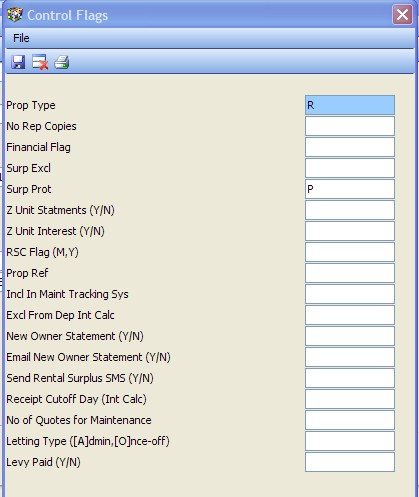
14.Indicate the ‘Property Type’ by entering a code from the list shown below. Following screens for this Propertyvary depending on this flag so as to be more relevant to the particular Property. E.g. a lease for a residential Property will be different from a commercial Property.
The acceptable types are as follows -
L - Levy. Usually a Residential Sectional Title scheme.
LC - Levy commercial. Usually a Commercial Sectional Title scheme.
R - Rental. Usually a Residential Rental house or building.
RC - Rental commercial. Usually a Commercially Occupied Rental building.
RF - Rental Residential Block of Flats
RCO - Rental commercial other - used in certain accounts
Other - When creating a new Property, if this field is left blank, the system will insert an 'R' as a default value.
15.Number of report copies - Some reports provide the option of printing more than one copy. This option is usually used when a building has more than one Owner. Enter the number of copies to be printed when reports are requested on this Property.
16.Financial Flag - Not used at this stage
17.Surplus exclude - Enter 'V', 'C' or 'VC' to instruct the system to not deduct 'V'AT control, 'C'reditors Control, or both from the surplus due to a Property Owner.
If left blank, the system will default to ‘VC’ (both).
(Refer to “Property Surplus Report” and “How Do I Pay Surpluses To Owners”)
18.Surplus protect – By default, the system sets this to ‘P’ and a password is required to change this default setting. The default ‘P’ setting ensures that the Property’s Central Trust Account is checked for sufficient funds before payments are made from the Property. No Check will be carried out if the Property uses Local Banking.
19.Z Unit Statements - Y/N - If this Flag is set to 'N' and the Unit Number is not numeric (i.e. includes any alphabetical character) and the Unit Vacate Date is prior to the statement billing date and the Unit Vacate Date is not blank, then a Unit statement will not be printed. The default setting is 'Y'.
20.RSC Flag - M or Y - When a Property Regional Services Council report is run, you can choose between monthly or yearly properties based on this flag setting.
(Refer to “How Do I Setup And Run a RSC Report”)
21.Property Reference No. - Enter a Reference Number that is usually linked to a client’s external system.
22.Include in Maintenance Tracking System - Y/N - Defaults to 'Y' but can be changed to 'N' to exclude this Property from the Maintenance Tracking System.
23.Exclude from Deposit Interest Calculation - Y/N - Defaults to 'N' but can be changed to 'Y' with a password so as to exclude All The Units Of This Property from calculating interest on their deposits.
(Refer to “How Do I Setup and Credit Interest On Tenant Deposits”)
24.New Owner Statement - Set this flag to 'N' to print a Levy/Rentroll and Surplus Report in place of the New Owner Report. (Refer to “Owner Statement Run”)
25.E-mail New Owner Statement Y/N - Set to ‘Y’ if you would like to e-mail the new Owner statement by default rather than printing it. In order to use this option, an email address must have been entered in the Owner’s Contact Details.
26.Send Rental Surplus SMS (Y/N) - Default is ‘Y’. Set to ‘N’ to stop sending an SMS to the Owner when funds are banked into their account.
27.Receipt Cut Off Day (Unit Interest) - If captured, this will be used as the grace period after which interest will be charged when using Unit Overdue Interest (Daily per Property).
e.g. 7 for the 7th
28.No of Quotes for Maintenance - Default is ‘1’. Enter the number of quotes that must be obtained for a maintenance job to be approved.
29.Enter 'A' for an Admin Property, or 'O' for a Once-Off Property
30Managers - Press 'F3' to enter the Manager and Credit Manager for the Property. Most selections can be sorted on this field – i.e. by Manager. The email addresses of the managers, which will print on UnitStatements, can also be entered here.
31Sub Prop - This field is used to Group Properties together for Balance Of Funds Consolidation and Group Reporting when running the Property Actual to Budget Comparison Report.
(Refer to “How do I Group Properties”)
Link to - Enter the Master Property Account Number. On the master Property, enter it's own number.
Link Flag - leave blank (Field for future use)
32Property Interest Rate - The rate of interest that will be charged to the Property whenever interest is raised on amounts due to the Agent’s Trust Account (Central Banking System). Enter either as a rate relative to the System Prime Rate, e.g. 'P+2', or as an Annual Interest Rate e.g. 18 (18%).
33Unit Int % - The rate of interest that will be charged to all Units when interest is raised on Arrear Balances. Enter either as a rate relative to the System Prime Rate, e.g. 'P+2', or as an Annual Interest Rate e.g. 18 (18%).
(Refer to “How Do I Charge Interest On Arrear Rental/Levies”)
34Marketing Areas - Enter the Marketing Area (Suburb) within which the Property is situated. Press 'F2' to choose from a list of available areas.
35Unit Statement Message - Press 'F3' to insert a four-line message that appears on Statements for all the Units of this Property.
Refer to “How Do I Insert a Unit Statement Message” for more detail on how the message structure operates)
36Legal - Press 'F3' to enter various legal and financial records relative to the building. This is mainly relevant to Sectional Title, but some of the fields, e.g. the Stand or Ref Number, are also relevant to Rental Properties. Examples of such fields are - Income Tax Reference Number, Last Annual General Meeting Date.
37Insurance Details - Press 'F3' to record the Insurance Policy, Broker and other base insurance information.
38Share GL - Press 'F3' to enter the details of any sharing arrangement between properties, relative to the system permissible accounts. This usually occurs when a number of properties, that share one VAT registration number and or one local bank account, are owned by a single Owner. Any general ledger entry posted to a shared account, will be posted to the controlling Property – entered here, via an inter Property loan account. The permitted accounts are Creditors control, Debtors control, VAT Control and the Local Bank Accounts 4113 to 4117.
39Notepad - Press 'F3' to enter or view either General Notes captured for this Property, or a record of the Maintenance Mandate given by the Owner.
The next three fields relate to fees charged by the Agent to this Property:
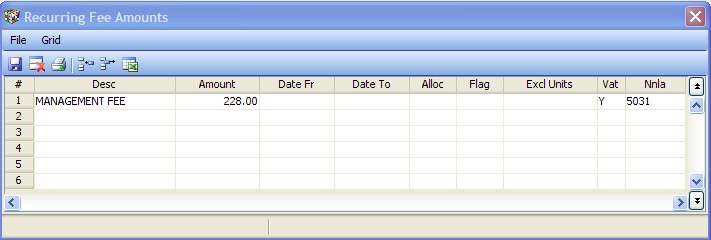
40Fixed Amount Fees - Press 'F3' to enter details of any number of fixed amounts to be charged to a Property by the Agent each month. This is usually either a management fee or fixed postage recovery. The Nnla below is the income account in the Agent’s books. Fees are raised as per the date settings that are captured here. The amounts are always inclusive of VAT.
41Collection Fee % - enter the percentage, including VAT (if applicable), of the fees charged on amounts collected from tenants of this Property. This is usually a collection fee based on an amount collected and receipted by the Agent on behalf of the Property. As an amount from a Unit is receipted, the fee captured here is charged and captured in both the Agent’s and the Property’s books.