These processes are used to import and export data (files) to the unix server from your computer, or from the unix server to your computer. These files are used by the system, eg. electricity reading data, or by an external system eg. debit orders by the bank.
This process is different from the export to Excel or Open Office. That process is usually used to tailor a system report, in for example, and Excel environment. The FTP process simply moves data in the form of a file, which data is then read in and used by another program.
Examples of where FTP'ed data would be used, are for importing electricity and water readings, exporting data for electronic creditors payments, importing salary and wages information.
To transfer files, follow the following procedure:
First setup the emulator on your computer:
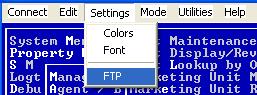
Click on 'Settings' and FTP.
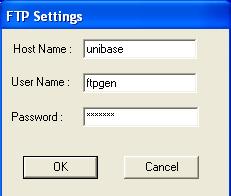
Enter a relevant Host name, User name and password. This information can be obtained from the Help Desk.
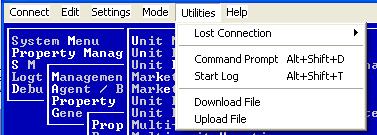
Then click on 'Utilities', and 'Upload' or Download as required:
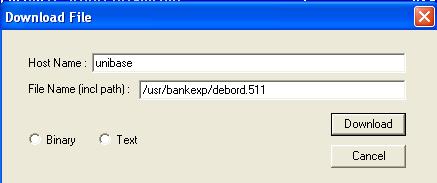
If you are downloading a file from the server to your computer, enter the host and filename and path, and click on 'Download'. You can usually leave both of the Binary and Text check boxes unclicked. Allow enough time, depending on the size of the file, for it to be downloaded. The window below will disappear when the process is complete. The downloaded file should be in the WinUbtrm directory on your computer.
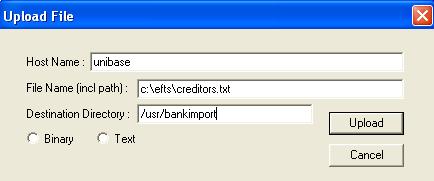
If you are uploading a file from your computer to the server, enter the host, filename and path, on your computer, of the file to be uploaded.
The ' File name (including path)' is important to get right. When you receive, for example, an electricity reading file, save it to a directory on your hard drive. Then type in the path and filename, as in the example below, adapting it to the actual file that you are uploading. Be sure to type the filename exactly as you have saved it - remember that it is case sensitive.
Then enter the path and directory on the server to which you want to transfer the file. Then click on 'Upload' . You can usually leave both of the Binary and Text check boxes unclicked. Allow enough time, depending on the size of the file, for it to be uploaded. The window below will disappear when the process is complete. The uploaded file should be in the relevant directory on the server, and be available for use by the relevant program.
Notes:
- If your FTP is not setup correctly, you will get an appropriate error message.
- If the uploaded or downloaded file is not where it should be, it is usually as a result of a spelling or path error. Remember that unix is case sensitive !