A Prior Period Journal posts all the entries in the specified batch to the Period entered in Field 3 of the batch screen. This Period can extend as far into the past as data is stored on the system, which is usually three years. If you post to a period prior to the financial year end that has been run, remember to re-run that and any subsequent year ends.
Due to the sensitivity of this type of feature, this screen is password protected.
The batch entry screen is similar to the following example: -
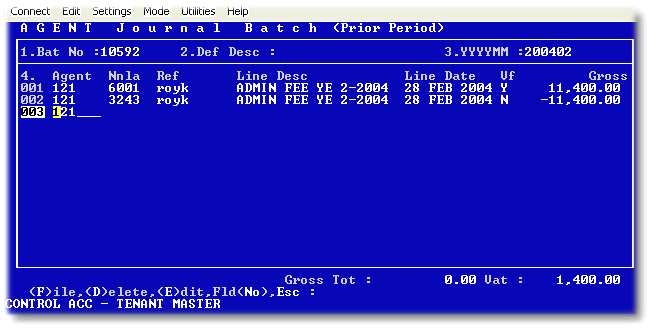
1.Batch No - Enter the batch number of a filed, unposted batch, or enter 'NEW' to create a blank, new batch. The system automatically allocates the next available batch number. If you wish to copy or reverse a previously posted batch without having to recapture it, type 'BATCH12345' where 12345 is the number of the batch that you wish to copy or reverse. The following prompts will need to be entered: -

After completion the unposted batch will be displayed for editing and posting.
2.Default Description - The text entered here is the default text that appears on each line. However, these line-descriptions can be edited. This feature is useful where a large batch of similar entries is being captured.
3.Shell - Can be ignored
4.Agent - Enter the appropriate Agent Number, the first few letters of the Agent's name, or press 'F2' to select from a list of Agents. It is possible to capture entries for multiple Agents in a single batch as long as the entries for each Agent contra to zero.
5.Nnla - Enter the required General Ledger Account Number, or press 'F2' for an income and expense account drill.
6.Ref. - Enter a Reference Number if required. This field defaults to the user's login.
7.Line Desc - Enter the Line Description that you wish to appear in the General Ledger. A sub-description field will appear that can either be completed or left blank.
8.Date - Enter the required Date. The default value for this field is the date from the previous line.
9.VAT Flag - Enter 'Y' if the amount includes VAT, or 'N' if it is exclusive of VAT. The default value for this field is the Agent's VAT Flag setting. No entry need be posted to the VAT control account as this is done automatically by the system depending on this flag setting.
10.Amount - Enter the Gross Amount, including VAT if relevant
In all fields, if you enter a " , ditto, a copy of the field above will be pasted into the relevant field. This can be useful when a complex reference is used, for example.
If you enter a " , ditto in any field, a copy of the field above will be pasted into the relevant field. This can be useful when a complex reference is used.
If you have mistakenly entered into a line and wish to exit from the screen, first delete the line by typing a ' # ' hash. This is the deletion method even if the line contains only the Property Number, .
Once you have entered all the necessary line items, type a full stop "." to drop to the command line at the bottom of the screen.
In the command line, you can either file a batch by entering 'F', delete it by entering 'D', re-edit it by entering 'E' , or you can enter the field number to which you wish to go. Once you have filed a batch, you will asked if you want to post it or leave it unposted for later checking and posting.
On most occasions it is wise to file large batches periodically while capturing in case of power failures etc.