Menu: Functions, Letting/Sectional Title, Credit Control, Outstanding Balances
Before attempting to print demand letters, ascertain which letters are on the system, the letter numbers, Eg. 'T3', and the amount that will be billed to the unit occupant for the printing and delivery of the letter. There are only two standard SMS's set up - one for rental arrears (SMS1) and one for levy arrears (SMS2).
Letters are added to the system by adding them to the setup table, and uploading a matching template to the server. The distribution of the letter is based on the rules setup using the setup facility (Administration menu), based on the following rules:
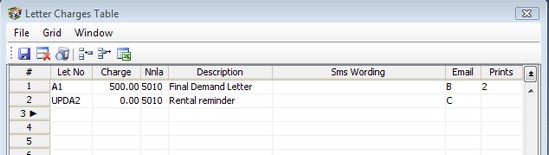
1. Enter a letter number to identify the letter. (Remember to ensure that there is a matching template on the Unisim server)
2. Enter the amount that will be automatically charged by the business to the unit for the sending of the letter.
3. The Nnla is the Income General Code in the books of the Agent
Use the Email and Prints columns to control the way the letters are delivered:
'C' to send to the client - tenant and surety if the surety option is chosen when running the letters. If email addresses are present, the letters will be emailed, else a copy will be printed. The surety will get a copy of the same letter as sent to the unit.
'O' to send to your office. The default address will be the credit managers address. If there is no email address, a copy will be printed.
'B' to choose both of the above.
Leave blank for no emails.
Prints
Enter the number of printed copies of the letter you require, or leave blank for no prints. these prints will be in addition to the copied printed where email addresses are missing.
The Unit notepad will be updated recording that the particular letter has been sent to the unit.
An example of the selection screen is displayed below:
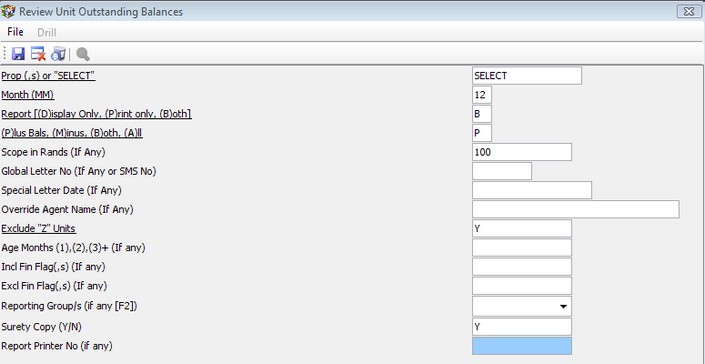
Having run the above option, and with the report displayed on the screen, browse through the units and decide to which ones you would like to send which letters. With the cursor on the required unit line, press 'Enter', and enter the letter number as required. If a global default letter number is entered as the report is run, the system will default to this number each time 'Enter' is pressed on a line. It can be amended.
To send SMS's, enter either 'SMS1' for rental arrears or 'SMS2' for levy arrears under the Global letter number. This will select all units in arrear, and insert the relevant SMS message number for all units with valid cellular telephone numbers captured.
Letters or SMS's will only be sent to those units selected. Not all have to be selected.
When 'Esc'aping from the report, a print letter window will be displayed, which is completed by the user.
If you wish to print the letters without charging, enter a 'B' on the relevant line, and no automatic billing will take place.
If the charges are not blocked, each unit in respect of which a letter has been generated, will be automatically charged according to the setup price of the letter generated. This will be an Agent to Unit billing, will feature on the unit statement, but not on the properties rentroll.
Refer to Agent to Unit Debtors