Use this screen to setup and maintain business debtors which run in the Open item environment.
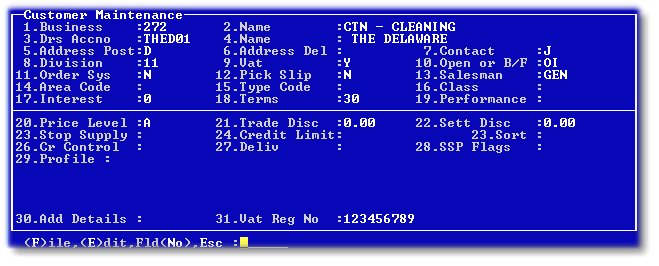
Fields:
1. Enter the relevant business number.
2. After entering the business number, the name of the business will appear for confirmation. It cannot be edited here.
3. Enter the debtors account number, that you wish to edit or maintain. Press 'F2' to view a list of all available accounts.
4. After selecting the debtors account number, the name will be displayed for confirmation.
5. Press 'F3' to enter the name and postal address for statements and invoices.
6. Press 'F3' to enter the delivery address for the supply of services and products.
7. Press 'F3' to enter Contact information for the debtor - Telephone and fax numbers, e-mail address etc.
8. Enter the division for the debtor as setup in the Setup menu.
9. Enter 'Y' if your business is registered for VAT, and the debtor is to be charged VAT. If for an unusual reason sales to this debtor would be exempt from VAT, enter N. This default setting will not be able to be overridden in the invoicing screens.
10. Enter 'O/I' for this debtor to be an Open item Debtor, or B/F for it to be a brought forward type debtor. O/I is the only setting available in this section.
11 and 12. Can be ignored in the property system environment.
13. Enter the salesperson that usually manages this debtor, as setup in the Setup menu.
14.,15,16. Can be ignored in the property system environment.
17. Enter the annual interest rate to be charged to the debtors on overdue balances. The rate can be an actual percentage, or a rate relative to the system prime rate eg. P+2.
Refer to Raise Interest on Arrears
18. Enter the normal payment terms - eg. '30' days, '60' days etc.
19. Press 'F2' to view an overview of the debtors sales etc.
20 to 30. Can be ignored in the property system environment.
31. Enter the clients VAT number which will be printed on the invoices for the client.