This utility reports the progress and the result of the production and distribution of PDF reports and SMS's. Documents are either E-mailed, faxed, printed or viewed.
Depending on the options that you select, your information will be displayed in a window within the UniProp emulator, or within an automatically invoked session of your internet browser. eg. Internet Explorer.
The following is an example of the initial selection window:

.
1. |
Unless you have been setup as an administrative user, you will only have access to documents and SMS's initiated by you |
2. |
Use the date fields to restrict your search to the period during which the information that you are looking for was produced. Enter the earliest date here...... |
3. |
..... and the latest date here. |
4. |
Enter 'E' to view a list and the delivery status of all documents e-mailed by you during the selected period. Enter 'S' to view a list and delivery status of all SMS's sent by you during the selected period. Enter 'F' to view a list and delivery status of all documents that were faxed by you during the selected period. Leave this option blank, to view a list of all documents etc. initiated by you during the selected period (All of the above types as well as print and view documents.) |
If 'E'-mail is chosen, a display similar to the example below will appear in your automatically opened internet browser:
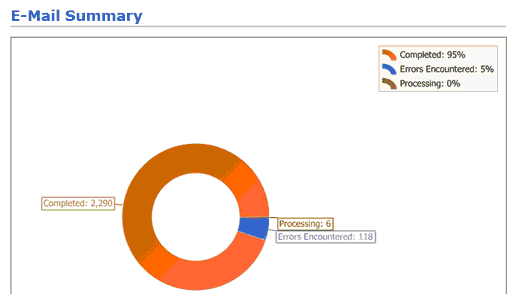
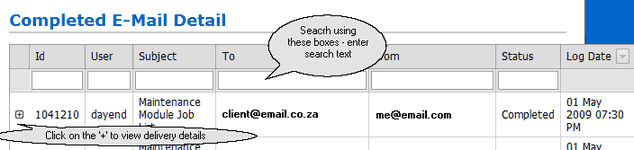
The graph contains a summary of all your e-mails for the selected period. Click on any category on the graph, to view a list of the detail making up the totals displayed. We clicked on the Completed (Orange) section:
If you wish to follow up reports that were not E-mailed or faxed ie. Viewed or Printed, leave the last option blank, and a full list of your documents will be displayed as in the example below:
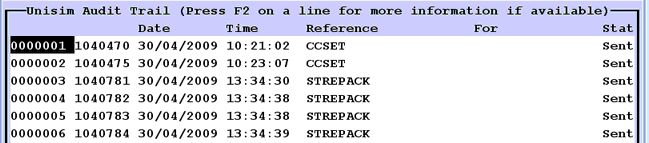
You can press 'F2' on any E-mail, Fax or SMS to view the details in the browser based displays above. Please contact the Help Desk if you find any documents with 'Failed' and you cannot trace the reason.
Please run the following tutorial which will assist in working with the production and distribution of these reports -